
Collect feedback right where your users are
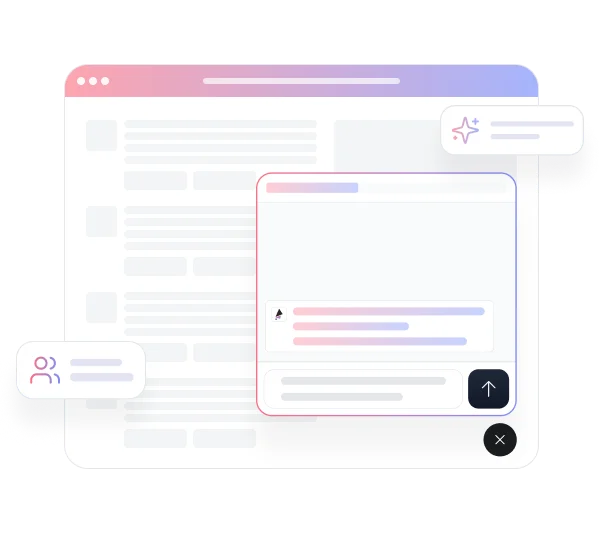
How It Works
Setting up the popup widget takes three steps.

Embed the widget on your site
Open the publish menu for your project by clicking the Share button. Under the Website tab, select Widget from the Popup Style menu. TheySaid generates an HTML script snippet — copy it and paste it into the head of your website or web application.
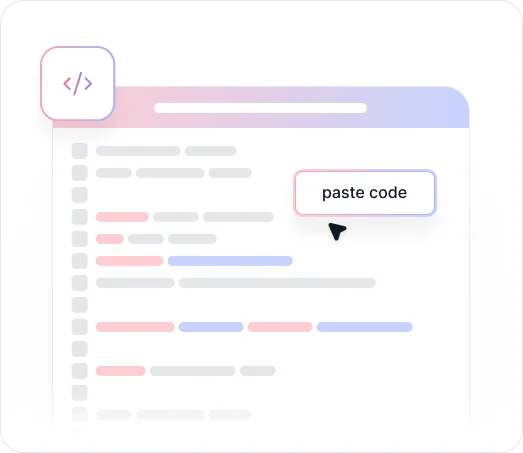
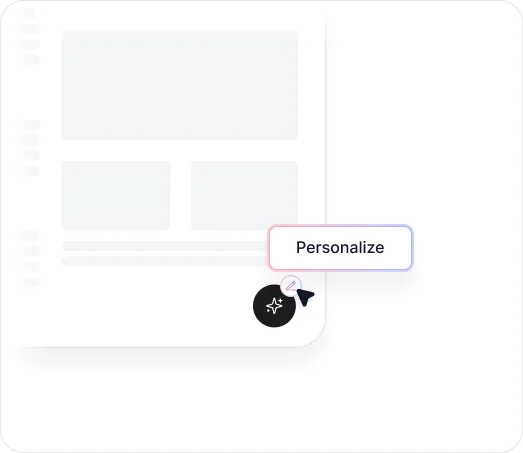

Customize Widget Behavior
Once the snippet is live, configure how and when the widget appears using the Configuration panel. Set fatigue prevention rules to control how often the same visitor sees the popup, and use filters to target the widget by page location, device type, activation state, status, and importance. Responses come in through your project just like any other channel.
Key Benefits
Discover what you can do with the In-App Popup Widget.

Catch Users in the Right Moment
Feedback collected right after an interaction is more accurate than feedback collected later. Embedding a widget on specific pages lets you reach users while they're actively engaged with your product, when their experience is still fresh and their responses are most useful.

Keep Users on Your Domain
Participants respond to your survey or chat directly from your website or web application without being redirected to an external page. The experience feels native to your product, which reduces drop-off and makes participation feel like a natural part of the visit.

Control Where and When It Appears
Filters let you target the widget by page location, device type, activation state, status, and importance. Show a feedback prompt on your checkout confirmation page but not your homepage. Target mobile users separately from desktop. The widget appears where it makes sense, not everywhere at once.
.avif)
Prevent Survey Fatigue
Fatigue prevention settings let you set the minimum time between popups and cap how many times a visitor sees one per month. These settings apply globally across all your widgets, so you can protect the experience for returning visitors without managing limits project by project.
.avif)
Works With Any Project Type
The popup widget supports surveys, interviews, polls, forms, and user tests. Whatever project type fits your feedback goal, you can embed it as a widget and collect responses directly on your site.
Capture real-time feedback exactly where your users are.
See what customers say about our AI user testing platform





FAQs
Both are found under the Website tab in the publish menu, but they behave differently. The iFrame embed places your project inline on a page as a static element. The popup widget appears as an overlay that shows up based on rules you configure, such as page location, device type, and timing. Use the widget when you want to prompt visitors proactively rather than waiting for them to find an embedded form.
Open the publish menu for your project, select the Website tab, and choose Widget from the Popup Style dropdown. Copy the HTML script snippet and paste it into the head of your website or web application. Once installed, the widget will begin appearing based on your configuration settings.
Fatigue prevention controls how frequently the same visitor sees your popup. You can set a minimum time between popups and a maximum number of popups per month. These settings apply globally across all widgets in your workspace, not just a single project.
Yes. The Configuration panel includes filters for page location, device type, activation state, status, and importance. This lets you show the widget only on the pages and to the audiences where it is most relevant.
The widget works with all TheySaid project types including AI Surveys, AI Interviews, AI Forms, AI Polls, and AI User Tests. Any published project can be embedded as a popup widget.
All responses feed into the same project regardless of how participants accessed it. You can filter responses by channel in the Analytics tab if you want to see how widget responses compare to other distribution methods.
Collect feedback in real time with a targeted popup widget.
Trigger prompts at the right moment, control where and when they appear, and capture high-quality responses directly inside your product without redirecting users away.


TheySaid User testing recommends questions, delivers via your existing channels, engages your audience,and summarizes results through AI user testing, surveys, and interviews.
.svg)


